Send WhatsApp messages and manage the inbox
Send a first message, reply with text or attachments, use notes, assign work and read delivery status.
- 1
Choose the right conversation
Open Inbox, select the workspace/channel and search for the customer. Read the latest incoming message and order context. Assign the conversation when a teammate should handle it. A green unread count means unread messages; a yellow staff/no-reply warning is an unresolved work condition and is not cleared simply by reading.
- 2
Start a new WhatsApp conversation
Choose «New», enter the customer's international phone number and prepare the recipient. Select an approved template and its exact language, fill the required values and review the recipient and message before Send. Preparing the recipient sends nothing. Contact the customer only with the appropriate permission.
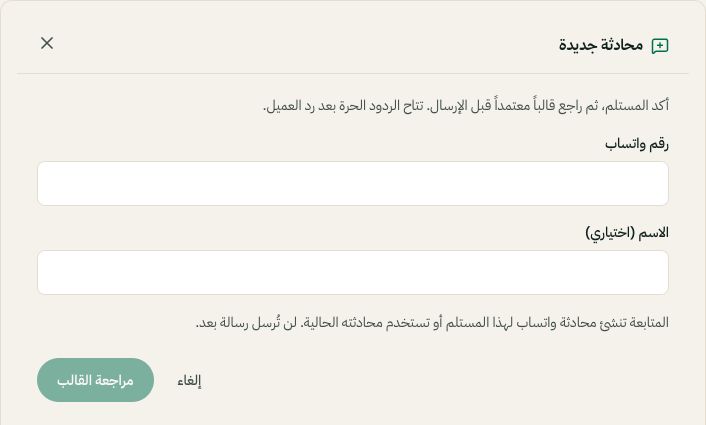
New conversation: review the recipient before choosing a template. Arabic interface shown; use the corresponding labels in your chosen language. Your available options and saved values may differ. Open the image to enlarge. - 3
Reply with text, a file or a voice message
Within the WhatsApp service window shown in the composer, write the reply or choose an attachment. Review the preview and remove a wrong file before Send. Use the available recording control for voice. Read the upload error if a type or size is unsupported. A selected attachment is not sent until you press Send.
- 4
When the 24-hour window is closed
Use an approved template when the composer requires one. Sending that template alone does not reopen free-form messaging: a new customer message opens the service window. Check the template status, language, variables and connected number if sending fails. Meta messaging charges may apply.
- 5
Notes, AI drafts and delivery status
An internal note is for your team, not the customer; check the composer mode. Review suggested AI replies before sending. Pending, sent, delivered, read and failed describe different stages. If the result is uncertain, check the existing attempt before sending the same message again. Resolve staff follow-up or explicitly resume AI when appropriate.