Connect Storage Station: pickups, replacements and tracking
Prepare your own provider account, connect return and outbound services, then verify your store SKUs and customer messages.
- 1
Before you start
You need your own active Storage Station Portal account, an active shipping plan with permission to create return waybills, a return warehouse and carrier coverage. Ask Storage Station to confirm these before connecting; successful login alone does not confirm your shipping plan or balance. Pickup setup currently supports Saudi customer addresses and parcels up to 25 kg. For outbound replacement shipments and live stock, also request your ShipHero API Access Token and Refresh Token from Storage Station or your warehouse provider. These are separate from your Portal email/password. A Moyafa registration does not create or pay for a Storage Station account. Provider shipment/storage fees remain with the provider.
- 2
1. Connect the store and return workflow
An owner or teammate with Manage settings opens Settings → Storage Station. Connect your store first and sync orders and products so they can be found. Shopify order access normally covers the last 60 days unless older-order access has been approved. Salla order summaries may omit the destination; Moyafa reads order details and outbound shipments when preparing pickup or replacement addresses. If the store omits the destination, Moyafa can use the original order’s delivery address in your connected ShipHero account, matched by exact order number or store order ID in your warehouse. Direct Salla shipment lookup additionally needs Salla’s Read shipping permission; this is not required for the ShipHero fallback. Staff must confirm any remaining missing details with the customer. Enable your Moyafa return page and approve its policy under Automations → Returns. Return features require Pro or an existing eligible entitlement; the warehouse connection alone does not activate a return policy.
- 3
2. Set up return pickups
In Return pickups, enter your Storage Station Portal email/password and choose Check account and warehouses. Select the warehouse that should receive returned goods, enter a sample customer city and check available carriers. Choose a preferred service, a store name of 2–25 characters and a default parcel weight of 0.01–25 kg, then save. The credentials are encrypted and are not sent back to the browser. Checks and saving do not create a waybill or notify a customer.
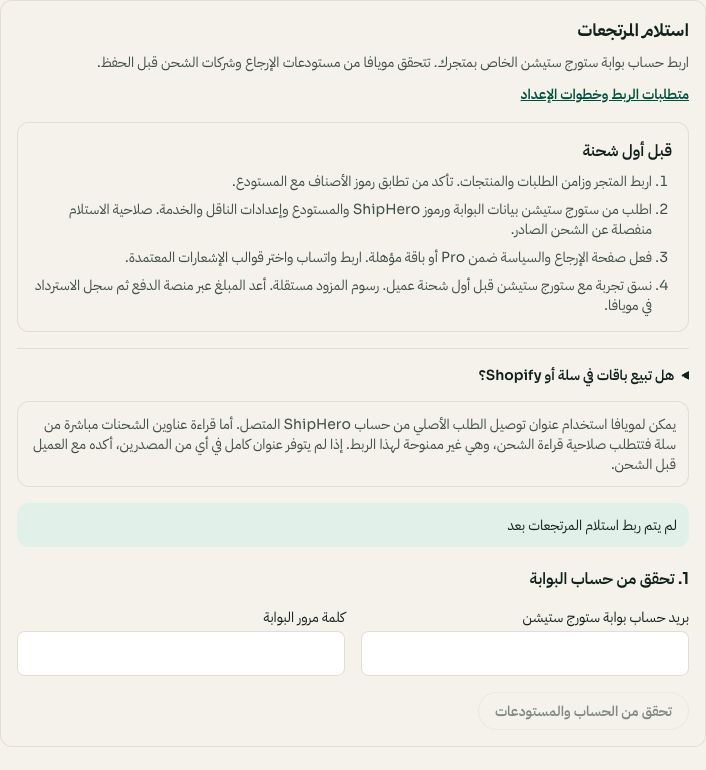
Review the warehouse checklist, then check your own Portal account. Arabic interface shown; use the corresponding labels in your chosen language. Your available options and saved values may differ. Open the image to enlarge. - 4
3. Set up stock and outbound replacements
In the outbound section, enter your ShipHero Access Token and preferably its Refresh Token, test the connection and select your warehouse. Enter the carrier code, shipping service title, shop/profile, dispatch method, contact email and replacement-order prefix confirmed by your provider. Do not copy another merchant’s routing values. Confirm the exact variant SKUs in your store match the warehouse. New merchant connections verify stock in the selected warehouse and block sending if stock is insufficient or cannot be verified. For Salla and Shopify packs, ask Storage Station to configure matching ShipHero kit SKUs and component quantities (for example one PACK-3 = three UNIT SKUs). Keep the provider’s existing store stock sync active and confirm it accounts for components shared between packs. Moyafa reads the kit’s available quantity and sends its exact SKU; it does not create kits, split the shared stock again or enable store stock write-back. A pack declaration in Moyafa alone does not configure a warehouse kit.
- 5
4. Prepare customer messages
Connect WhatsApp, submit the Utility templates you want to Meta and wait for approval. Under Message templates → Return & exchange messages, match each event to an approved template and preview its variables. Use Order updates for ordinary order-status templates. A warehouse connection does not submit or approve WhatsApp templates.
- 6
5. Review and confirm each shipment
Open a return/exchange ticket. Pickup tools check the actual customer address and available services again before staff confirm. Replacement tools check the selected SKU and stock. Creating a real pickup or replacement books work with your provider and can incur charges. Tracking appears when the provider supplies it; a created label is not proof of collection or delivery. Use a controlled order for your first end-to-end test and confirm it with your provider.
- 7
Troubleshooting and reconnecting
No warehouse: ask Storage Station to enable a return destination. No carrier: check the city and provider coverage. Login rejected: confirm Portal access with Storage Station. Login works but waybill creation is rejected: ask Storage Station to confirm your shipping plan and return permissions; do not create repeated pickups while a result is pending. Outbound access expired: replace the API tokens and reconnect. Missing tracking: confirm shipment updates are enabled by the provider. Each merchant uses its own saved credentials; managed existing connections are protected from this setup.