Your first setup checklist
Connect, verify, prepare your assistant and test before enabling customer automations.
- 1
Connect your store
In Settings, choose your store platform and follow its connection guide. Check the correct store is linked, then sync products, orders and customers. Verify a known order and its variants; do not assume that connection success means every historical order has been imported.
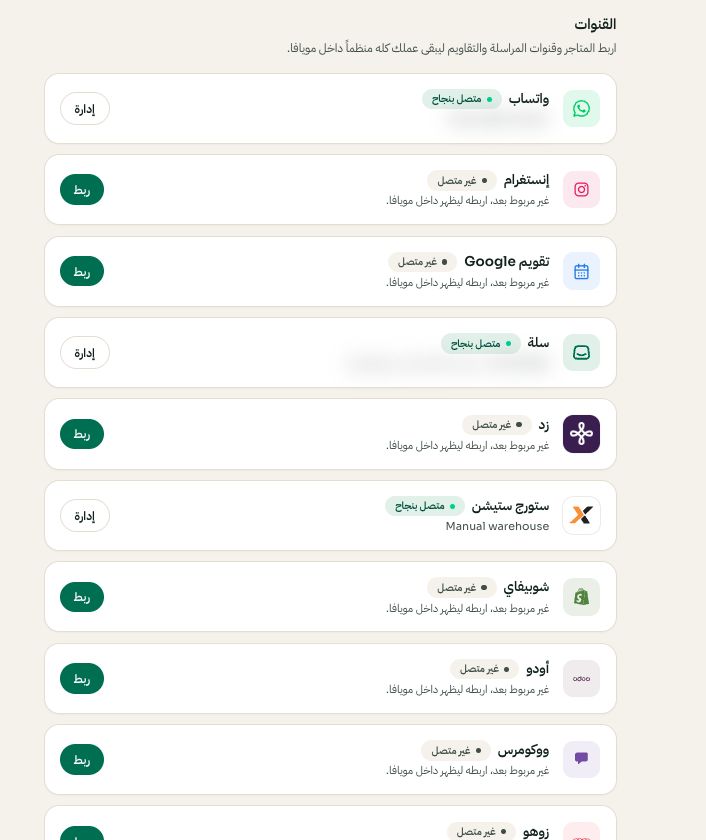
Settings → Channels: choose the platform, then Connect or Manage. Arabic interface shown; use the corresponding labels in your chosen language. Your available options and saved values may differ. Open the image to enlarge. - 2
Connect WhatsApp and prepare a template
Choose the appropriate WhatsApp connection. For an existing Business app number, read the Coexistence guide before changing its registration. Submit a template and refresh its approval status. Use a number you control for the first send.
- 3
Configure AI and policies
Open Set up my AI, review the suggested changes and run the private examples. Review return forms and notification rules separately. Saving instructions alone does not book a shipment or configure a template trigger.

Start the guided AI setup from Automations. Arabic interface shown; use the corresponding labels in your chosen language. Your available options and saved values may differ. Open the image to enlarge. - 4
Invite the team, then enable only what you tested
Give staff the permissions they need. Test an inbound message, a reply, a known order and each automation you intend to use. A real campaign or shipment creates real work; review its audience or shipment details before confirming.