Connect Instagram and reply to messages
Authorize your business account, verify inbound messages and manage replies from the shared inbox.
- 1
Manage comments on your posts and Reels
Open a comment conversation in Inbox and choose Manage Instagram comment below the selected comment or reply. Moyafa checks its current Instagram status. Hide removes it from public view; Restore shows it again. Delete requires a separate permanent-deletion confirmation and the workspace's Delete conversations permission, in addition to inbox/reply access. The local inbox record remains. Deleted comments cannot be restored. Instagram keeps the post owner's own comments visible and does not support moderation of live-video comments. If access has expired, reconnect Instagram and grant comment management.
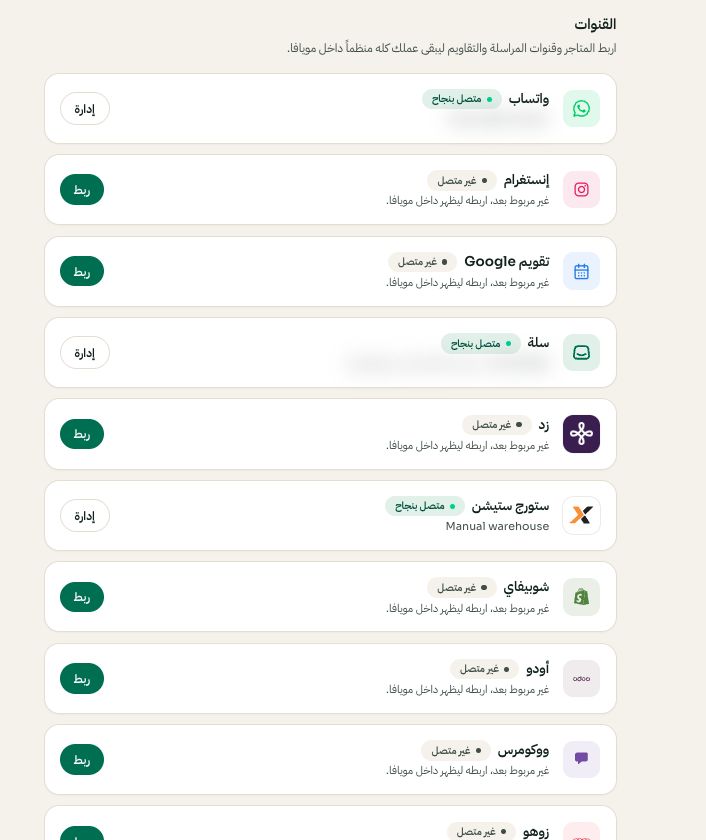
Settings → Channels: choose the platform, then Connect or Manage. Arabic interface shown; use the corresponding labels in your chosen language. Your available options and saved values may differ. Open the image to enlarge. - 2
Open the Instagram connection
In Settings → Instagram, use the connection option shown for your workspace. Sign in with the account authorized to manage the business and select the intended Instagram account in Meta's flow. Resolve missing permissions in the provider flow before continuing.
- 3
Test receiving and replying
Send a test direct message from an account you control and open the Instagram conversation in Moyafa Inbox. Reply there and verify arrival on the test account. Sending limits and supported attachments differ by channel; follow the composer state instead of applying WhatsApp template rules to Instagram.
- 4
Review AI channel settings
Enable Instagram in the assistant's channel rules only if the option is available and you intend automatic replies there. Human takeover and topic rules still apply. If incoming messages stop, check connection health and reauthorization rather than creating a duplicate workspace.