Skip to content
moyafa
HomeProductFeaturesPricingIntegrationsHelp
عربيLog inSign up now
العربية
Moyafa is a Meta-approved Tech ProviderMeta Tech Provider
Back to help center

Connect your Zid store

Authorize Zid, then sync orders, products and customers into Moyafa.

  1. 1

    Open Settings → Zid

    In Moyafa, go to Settings → Zid and click «Connect Zid». Only an owner or admin can connect a store.
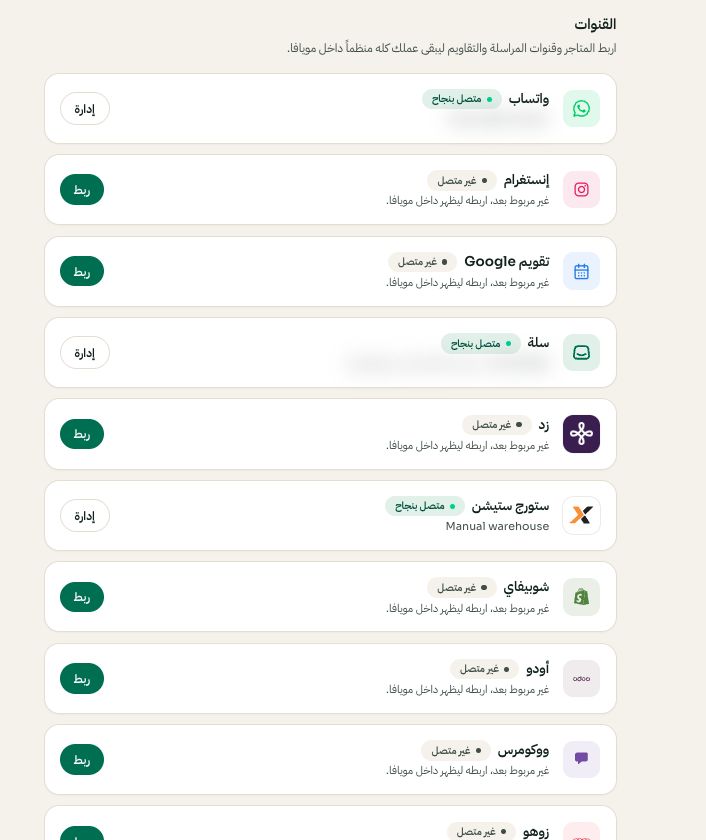
    Settings → Channels: choose the platform, then Connect or Manage
    Settings → Channels: choose the platform, then Connect or Manage. Arabic interface shown; use the corresponding labels in your chosen language. Your available options and saved values may differ. Open the image to enlarge.
  2. 2

    Authorize on Zid

    You're taken to Zid's authorization screen — sign in if needed and approve Moyafa. You come back automatically and your tokens are stored encrypted.

  3. 3

    Confirm the sync

    Orders and products land in the same workspace, with live updates. Re-sync any time from Settings → Zid.

Still need help?

Tell us what you are trying to do and where you got stuck. Do not include passwords, verification codes or private customer details.

Contact us on WhatsAppEmail support
moyafa

Your team’s WhatsApp, customer orders and business appointments in one place. Reply, follow up and get the work done with Moyafa.

Operated by Three Lines Company Ltd (KSA)

Download for iPhoneGet it on Google Play

Product

FeaturesPricingIntegrationsProductHelp center

Legal

Privacy PolicyTerms of Service

Contact

support@moyafa.comMessage us on WhatsApp

© 2026 Moyafa. All rights reserved.

العربية
Talk to the Moyafa teamOn WhatsApp