Connect your Salla store
Link Salla so orders, customers and products sync into Moyafa.
- 1
Open Settings → Salla
In Moyafa, go to Settings → Salla and use the connection option shown, then complete installation/authorization in Salla. You need permission to manage settings.
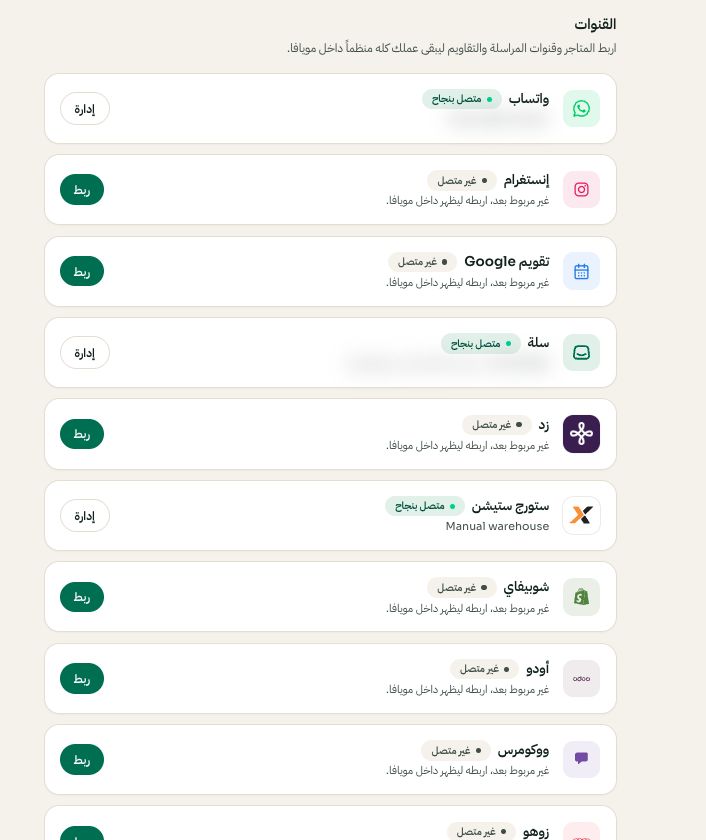
Settings → Channels: choose the platform, then Connect or Manage. Arabic interface shown; use the corresponding labels in your chosen language. Your available options and saved values may differ. Open the image to enlarge. - 2
Authorize on Salla
You're taken to Salla's authorization screen — sign in if needed and approve Moyafa. You come back automatically and your access is stored encrypted.
- 3
Confirm the sync
Orders appear under Orders and products under Catalog. Moyafa automatically refreshes connected Salla stores in the background: recent orders are checked regularly, products and stock are refreshed, and older order history is checked separately. Large catalogs and histories load in batches, so updates are not instant. Products confirmed deleted in Salla are removed from Moyafa's catalog without removing historical orders. You can still re-sync from Settings → Salla. If disconnected, follow the reconnect or reinstall option shown for your account.